
How do you fulfill your travel goals to travel more? You’ve gotta remember your why and one easy way to do that is by adding travel photos as your phone background. Photos that you see everyday and every time you use your phone. When you see yourself gliding through the canals of Venice in a gondola, exploring the pyramids of Egypt, or hiking in the Rocky Mountains of Colorado, you are inspired to plan even more adventures, trips, and vacations. Your photos are not only Instagram-worthy eye candy on your Phone, but they also help you to picture yourself traveling. More.
If you love to take photos as you travel, use your photos to inspire yourself to travel more. Clearly visualize your travel goals as you create your own photo wallpaper.
How to Remember Your Travel Adventures?
This page may contain affiliate links. If you choose to click on one of the links and then make a purchase, Just Wander More may earn a small commission. The commission is paid by the company at no extra expense to you. Read the full disclosure here.

I spend a lot of time on my iPhone (and iPad) blogging, posting to social media, wasting time, and doing blogging STUFF. Let’s face it, I bet you do too. According to Forbes, we all spend time on our phones.
IMPROVE your phone experience with personalized travel wallpaper that is perfect for your HOME screen and LOCK screen. PLUS, if you are dreaming of travel, adding travel photos to your phone background will inspire travel wanderlust, encourage you to create the travel bucket list of your dreams, and remember your why when you wonder how you can make it all happen.
Photography Tours Around the World
Create Your Own Photo Wallpaper
You have the option to create your own photo wallpaper using YOUR own inspiring travel photos for your LOCK SCREEN and your HOME SCREEN.
- Lock Screen – This is the screen you see when you “wake up” or turn on your phone. The photo in the background can be customized.
- Home Screen – The home screen appears when you add your code or use facial recognition to unlock your screen. Here you see all of your APPS overlaying a background photo on your screen. The background photo is what you have the option to change.
There are even options for setting dynamic or live photo wallpaper. The options for personalizing your lock screens are growing all of the time.
If these photos are not already in your phone’s camera roll, you will want to save photos to your iPhone or upload them to the phone itself. If you don’t already know, I’m going to tell you how!
If you need similar instructions for adding photos to the wallpaper of your Android phone, Google offers some easy-to-follow instructions.
1. How to Add an Image to Your Photo Library
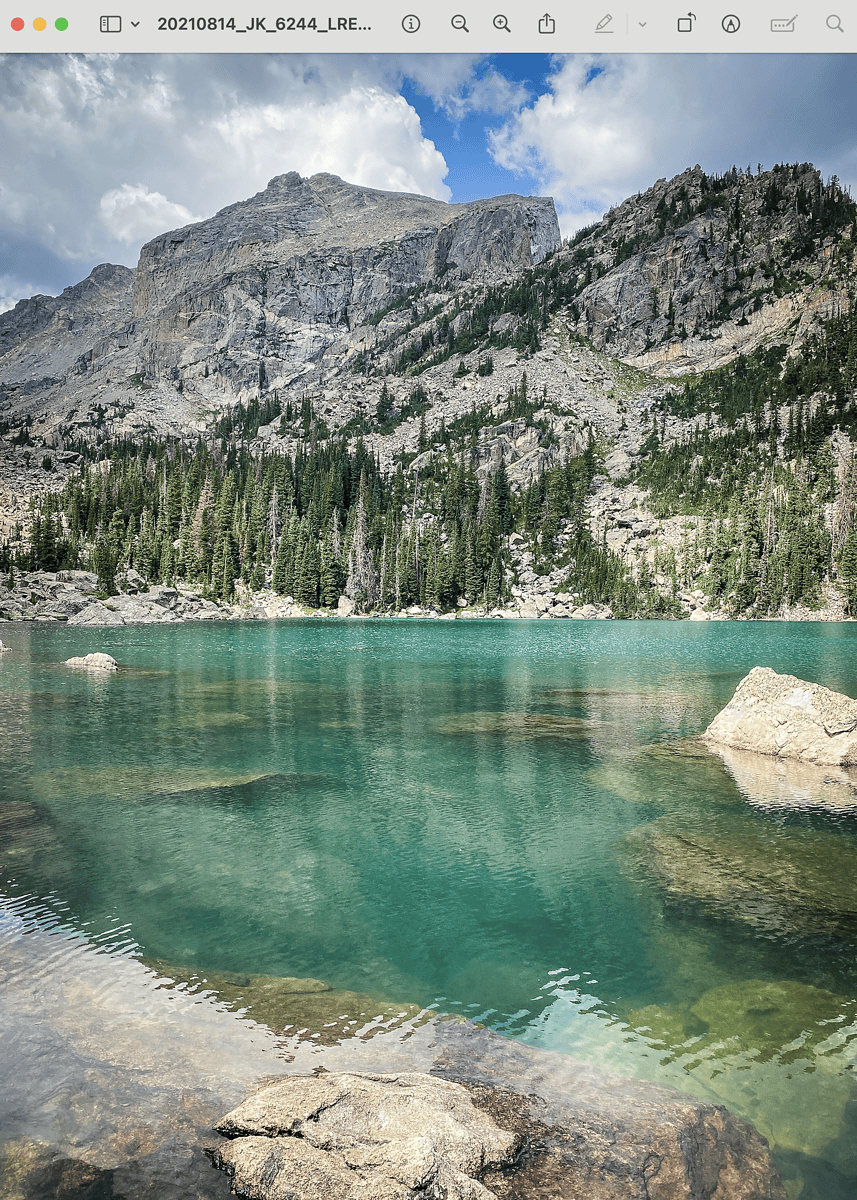
If you want to download the picture of Lake Haiyaha in Rocky Mountain National Park (below), it is easiest if you are reading this blog post on your phone.

Hold your finger on the photo until a box pops up on your screen prompting you to Share, Save to Photos, Copy.

Save the image to your camera roll by clicking “Save to Photos”.
Photography Tours Around the World
2. Save an Image as Wallpaper for Your iPhone
Now, find the image in your Camera Roll—see the Photos App Icon below.

Click the icon on the bottom left side of your screen that looks like a document with an arrow pointing up (It is circled in red with an arrow pointing to it).

You will see on your screen, a horizontal list of people you regularly text. Below that is a list of services such as: Air Drop, Messages, Mail, Messenger, etc. Scroll down a little more until you see a list that gives you the options to: Copy Photo, Add to Shared Album, Add to Album, AirPlay, and then “Use as Wallpaper”. Select Use as Wallpaper.

You may wish to adjust the photo on your screen USING TWO FINGERS TO PINCH OR CROP. Due to the varying nature of screen sizes, you may need to adjust the photo to the right or left, up or down, or zoom in or out to make the photo fit your screen just the way you want. Then click “Done”.

You will have the option 1) “Set as Wallpaper Pair”, meaning the photo will be used for BOTH the Home and Lock Screen background, or 2) “Customize Home Screen”.

Choose “Set as Wallpaper Pair” if you want it for both the Home and Lock Screen.
If you want to have different backgrounds for both screens, click the “Customize Home Screen” button to change either the Lock Screen (on the left) or the Home Screen (on the right).
Add another photo by clicking the “Photos” button at the bottom of the screen (see pic below). Unless you like the blurred look, be sure to TURN OFF “Blur” so that you can see the picture clearly. Crop and move the photo until you are happy with the position.
Click “Done”.

This is the background photo that I have added to my home screen.

Enjoy! Now, when you hear people talk about the wallpaper on their phone, you know they aren’t really talking about wallpaper used to hang on a dining room wall. It is the background photo on your phone that can inspire you to follow your dreams.
Photography Tours Around the World
3. Adding Travel Photos to Your Phone That are Taken with Another Camera
When I travel, I usually have my phone and DSLR camera ready to capture the amazing scenery that I see.
To use your own travel photos taken with your camera you will need to follow these steps:
- Upload your photos to your computer once you return home from vacation. I upload to Adobe Lightroom.
- Create a system to catalog your photos. I use Lightroom to organize, tag, and adjust my photos. One of the main things I do in Lightroom is fix my photos, ie., straighten, remove objects, and enhance.
- As you create folders in Lightroom, these same folders are created in your default file manager on your computer where you can search, manage, and access your files and folders. On a Mac, this is the “Finder”. On Windows, this is called the “File Explorer”.
- Open your Finder or File Explorer and find the picture that you would like to upload to your phone. Double click on the photo and it open in “Preview”.
- Click on the icon in the top bar that looks like a document with an arrow pointing up. It will bring up options to send to: Airdrop, Messages, Notes, Add to Photos, etc. If you access your photos using a desktop computer, choose AIRDROP. Make sure that your phone is nearby and unlocked.
- A small box will pop up on your computer screen. Choose your phone from the device options given (Again, your phone needs to be unlocked in order to show as an option). The photo you are trying to copy from your computer will now appear in your phone’s PHOTOS. Click “DONE” on your desktop. Access the photo on your phone following the instructions given above.
Camera & Lens Options for Great Travel Photos
Camera Gear Basics
Keep your camera handy—beautiful moments pop up everywhere. What’s in my camera bag? Check out my favorite photography equipment.
- No DSLR? Your iPhone works too — the best camera is the one you have with you.
- Camera body — Canon PowerShot G1 X Mark III (grab-and-go) or Canon EOS Rebel SL3 (if you want to learn manual mode).
- Lens — Canon EF 50mm f/1.8 STM (“Nifty Fifty”) is inexpensive, sharp, and great for portraits.
- Camera Clip — The Peak Design Clip attaches to a backpack strap so the camera isn’t hanging off your neck all day.
- Small Tripod — The GorillaPod has flexible legs that wrap around railings or branches, no need to haul a full tripod.
- Wireless Remote — A wireless remote lets you be hands-free.
Related Post: 15 Popular Photography Gadgets
Photography Tours Around the World
15 More Ways to Inspire Your Travel Goals
If you are looking for additional ways to inspire more travel when creating your travel goals, consider these ideas:
- Create a Travel Vision Board – Pinterest is a perfect way to do this, but you could also create a physical vision board that hangs on your office wall or somewhere that you can easily see it every day.
- Add travel photos to your bathroom mirror as a great way see your goals every single day.
- Collect travel and adventure quotes.
- Create and post family travel goals on your fridge.
- Create an adventure bucket list.
- Learn a new language.
- Explore close to home to inspire you wanderlust. Go on road trips.
- Create a vacation savings fund.
- Ignore people who don’t encourage you.
- Follow influencers on social media: Pinterest, Instagram, Flipboard, or LinkedIn
- Learn how to use public transportation.
- Sign up for travel rewards for hotels, rental cars, and airlines.
- Find a travel buddy if you don’t already have one.
- Embrace new adventures.
- Find ways to display your travel photos: photo book, wall art, postcards.
- Sign up for a travel-themed credit card.

Photography Tours Around the World
Be Inspired with These Adventure & Travel Quotes!
- 103 Romantic Instagram Quotes for Couples Who Love to Travel
- 109 I’m Loving the Beach Quotes for Instagram
- 105 Inspiring Hiking and Mountain Quotes for Instagram
- 101 Best Travel Quotes for Instagram to Inspire Wanderlust
- 300+ Incredible Travel Content Ideas for Instagram
- 100 Inspiring Instagram Travel Captions

Love this Post? Pin it!
Ready to Inspire Your Travel Goals
I hope that you find a picture or two that you love from from your travel photos. More importantly, I hope those pictures inspire you to create a bucket list, to plan travel, to post and share your photos and to set travel goals for more travel.
Your friends might just marvel at your phone lock screen. If they do, point them to this post so they can learn how to add a little travel inspiration to their phone too.
You may also love…
- Travel Photos: 12 Creative Ways to Actually Share & Display Them
- Romantic Instagram Quotes for Couples Who Love to Travel
- Tips to Take Better Travel Photos (and Look Good in Them Too!)
- Best New Year Captions for Instagram to Inspire Travel
- Family Photography: 10 Super Reasons to Plan a Family Photoshoot on Vacation
- What’s In My Camera Bag? Best Travel Photography Gear Guide for 2025
- European Travel Adventures: 11 Essential Tips for Planning a Trip to Europe
What a lovely idea to use your photos as wallpaper. Also, you’re photos are amazing! I especially like the cow one. That should add some spice to my phone.
Thanks for sharing!
The pictures are so soothing to the eye. It’s a great view to start your day!
Thanks for sharing. I have so many photos on my phone that I could use, so those tips come really useful. Many thanks!
Wonderful tips! I just got a new phone about an hour ago, so I know what I’ll be doing this afternoon 🙂
Cool post and the tutorial is awesome and easy to understand. Thanks.
Thanks for sharing these wallpapers with us. Happy new year!
Love these so much for travel inspiration. Thank you for sharing!
Gorgeous photos! Thanks for sharing these so that others can enjoy them too.
This is such a creative blog post. I love the pictures you provided and the great step-by-step instructions. Thank you!!
This is eye candy! I love all the travel inspiration wallpapers!
This is such a great idea!! I am going to save this article and update the background of my phone all the time.
I need to step up my phone wallpaper situation. Looking at a beach all day would help my mood for sure. 🙂
I love the Lucerne wallpaper!
LOVE this post.. need to dig out some Banff photos to use for this project- thanks for the step by step guide 🙂